Search for a WordPress accessibility plugin and you’ll find dozens of options, many promising to make your site “ADA compliant” in a few clicks. Some of them are useful. None of them can do the whole job on their own.
This guide sorts accessibility plugins into the four types you’ll actually run into, explains what each one is good at, and shows where a plugin stops and real site work begins. If you’re new to the topic, start with our plain-English guide to what an ADA compliant website is, then come back here.
A quick note: we’re a WordPress maintenance team, not lawyers. Nothing here is legal advice. If you have a question about your legal obligations, talk to an attorney.
Why a plugin can’t make a site accessible on its own
Accessibility lives in your content and code: whether images have meaningful alt text, whether form fields have labels, whether menus work with a keyboard, whether text has enough contrast. A plugin can help with some of that, but it can’t decide what a photo of your storefront should say to a screen reader user, or rewrite a confusing checkout error.
The World Wide Web Consortium (W3C), which publishes the Web Content Accessibility Guidelines (WCAG), is direct about this. Its guide to selecting accessibility evaluation tools says tools can’t check every aspect automatically and that “human judgement is required.” The Department of Justice’s guidance on web accessibility and the ADA makes a similar point about automated checkers: a clean report doesn’t necessarily mean everything is accessible.
So the useful question isn’t “which plugin makes my site compliant?” It’s “which plugins help me find and fix problems, and what’s left for a person to do?”
The four types of WordPress accessibility plugins
1. Accessibility checkers (scanners)
What they do: scan your posts and pages, usually from inside the WordPress editor or admin, and flag issues such as missing alt text, empty links, skipped heading levels, low-contrast text and unlabeled form fields. Some run on every save; others scan the whole site on a schedule.
Where they help: they turn a vague worry into a to-do list. They’re especially good at catching the repetitive mistakes that creep in as different people add content over the years.
Where they stop: a checker can tell you an image has alt text, not whether the alt text is any good. It can’t tell whether your mega menu is usable with a keyboard or whether a pop-up traps focus. Treat the results as a starting point, not a pass/fail grade.
2. Fix-up (remediation) plugins
What they do: change how your site’s front end behaves to repair common theme problems. Typical features include adding a “skip to content” link, restoring visible focus outlines that a theme removed, removing title attributes that duplicate link text, forcing underlines on links, and adding labels to search forms.
Where they help: they’re a reasonable patch when your theme has a handful of known issues and a full theme change isn’t in the budget yet.
Where they stop: they work around problems instead of removing them, and every one of them is another plugin to keep updated. If you find yourself stacking several fix-up features to cover for a theme, the theme is the thing to fix or replace.
3. Visitor toolbars and overlays
What they do: add a button, usually in a corner of the screen, that opens a panel where visitors can enlarge text, increase contrast, pause animations, highlight links or switch to a more readable font. Some products, often called overlays, also run automated scripts that try to patch issues in the page as it loads.
Where they help: some visitors genuinely like having display options in one place, particularly people with low vision or attention and reading difficulties who don’t use dedicated assistive technology.
Where they stop: people who rely on screen readers or keyboard navigation usually already have tools configured the way they need; what they need is a site whose underlying code works. An overlay can’t fix a checkout that can’t be completed with a keyboard or a PDF that’s just a scanned image. Overlay marketing has also drawn regulator attention: in 2025 the Federal Trade Commission finalized an order requiring accessiBe to pay $1 million over allegations that it misrepresented its tool as able to make any website WCAG compliant. Treat a toolbar as an optional extra on top of an accessible site, never as the fix.
4. Accessible building blocks
What they do: this group includes the pieces your site is built from: themes, page builders, form plugins, slider and menu plugins. They aren’t sold as “accessibility plugins,” but they decide more about your site’s accessibility than any add-on.
Where they help: WordPress itself sets a high bar. Its accessibility coding standards say code in WordPress core, WordPress.org sites and official plugins is expected to conform to WCAG 2.2 at Level AA. In the theme directory, look for the accessibility-ready tag. Themes with that tag have been reviewed against a list of accessibility-ready requirements, including skip links, keyboard navigation, labeled form fields, heading structure and color contrast. Those requirements were tightened in May 2026 to align more closely with WCAG.
Where they stop: even WordPress’s own accessibility team points out that a theme is only a wrapper for your content. An accessibility-ready theme with unlabeled forms and image-only buttons added on top still has barriers.
What no accessibility plugin can do for you
Whatever mix of plugins you use, these jobs still need a person:
- Writing meaningful alt text. Describe what matters about the image in context, and leave decorative images with empty alt text.
- Captioning videos and fixing documents. Upload captions with your videos and replace scanned PDFs with real text or web pages.
- Keyboard testing. Press Tab through your menu, contact form, booking widget and checkout. You should always be able to see where you are and reach everything.
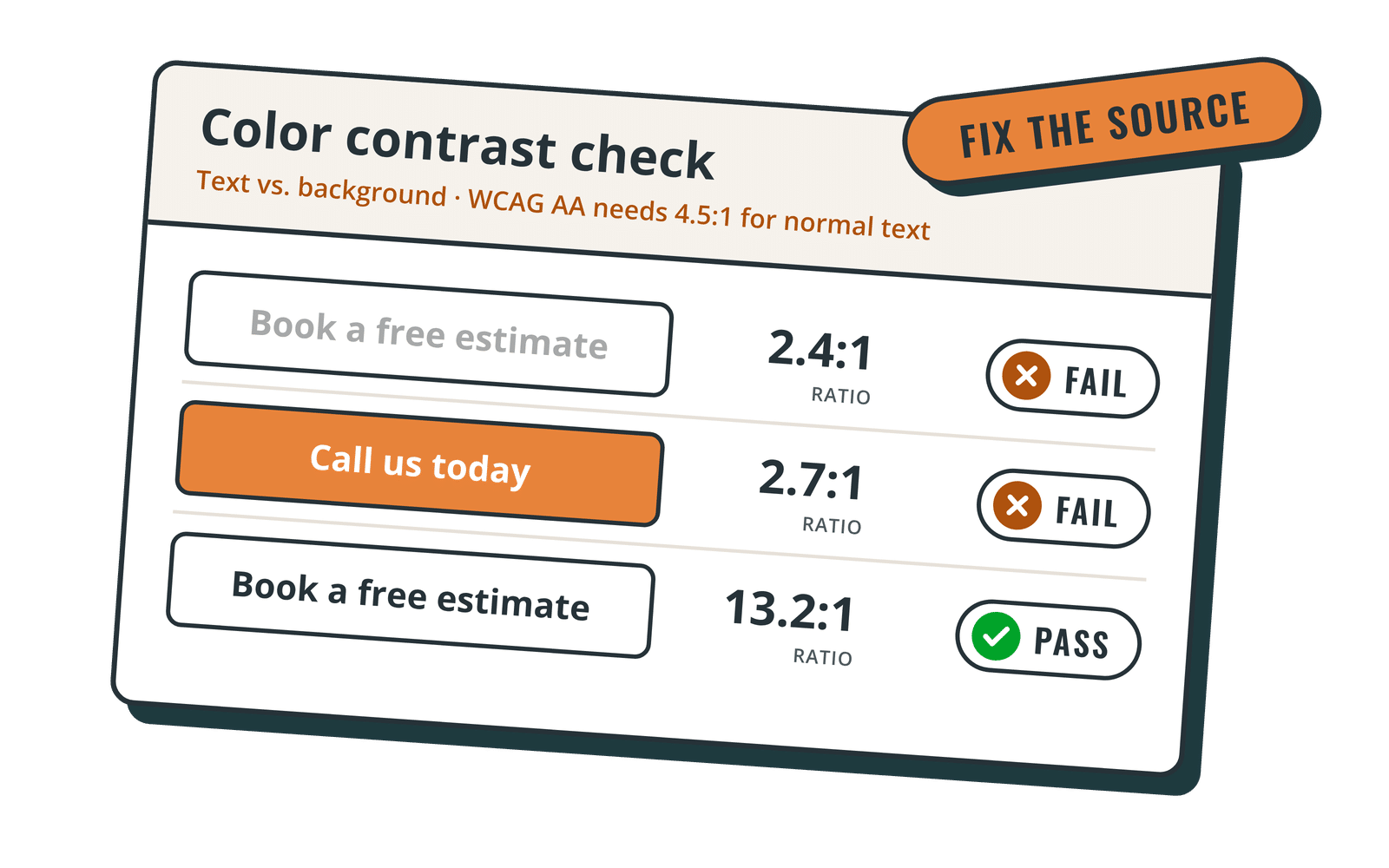
- Choosing accessible colors. Contrast is best fixed once, in your theme or brand colors, rather than page by page.
- Writing clear labels and error messages. “Email address” beats a placeholder that disappears, and “Enter a 5-digit ZIP code” beats a field that just turns red.
- Checking custom features. Booking systems, calculators, membership areas and custom checkouts need hands-on testing, ideally including a screen reader.
- Re-checking after changes. A new plugin, a theme update or a redesign can undo earlier fixes. Accessibility is upkeep, not a one-time project.
How to choose the right WordPress accessibility plugin
Use this order, and you’ll avoid most of the common mistakes:
- Start with a checker. Run a scan (or a free browser tool such as WebAIM’s WAVE) to see what you’re dealing with before you install anything else.
- Fix the foundation. If the scan shows theme-level problems such as missing focus outlines, poor contrast or a menu that doesn’t work with a keyboard, decide whether to fix the theme, add a fix-up plugin as a stopgap, or move to an accessibility-ready theme when you next redesign.
- Clean up content. Work through alt text, headings, link text and form labels. This is where most real-world errors live.
- Add a visitor toolbar only if you want one, and only on top of the work above. Don’t let it replace steps 1 to 3.
- Keep the plugin count sensible. Each plugin adds code to update, test and secure. Two plugins that do one job well beat five that overlap.
Before installing any accessibility plugin, check the same things you’d check for any plugin: when it was last updated, whether it’s tested with your WordPress version, what support looks like, and whether it loads extra scripts on every page. A plugin that slows your site down or stops getting updates creates new problems while solving old ones. (If speed is already a concern, see what a WordPress speed optimization service actually fixes.)
Common questions about WordPress accessibility plugins
Will an accessibility plugin make my site ADA compliant?
No plugin can guarantee that. For private businesses, the ADA doesn’t include a specific technical checklist, and the DOJ’s guidance says businesses have flexibility in how they comply. Most organizations use WCAG Level AA as their target. Plugins can help you find and fix issues on the way there, but the content, theme and forms still have to be accessible.
Do accessibility plugins slow down WordPress?
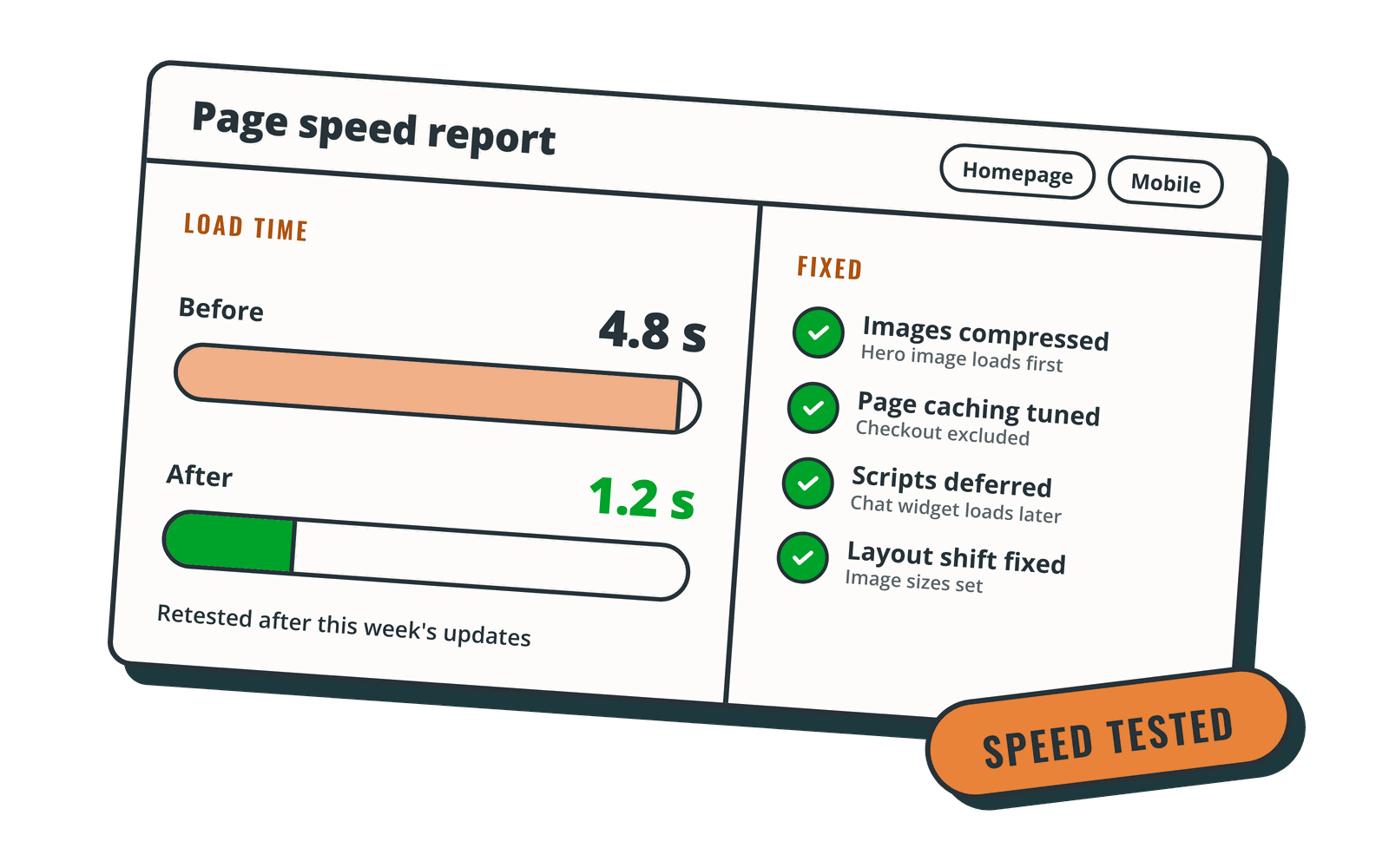
Checkers that only run in the admin have little effect on visitors. Front-end toolbars and overlays load scripts on every page, so test your page speed before and after you install one.
What about WooCommerce and membership sites?
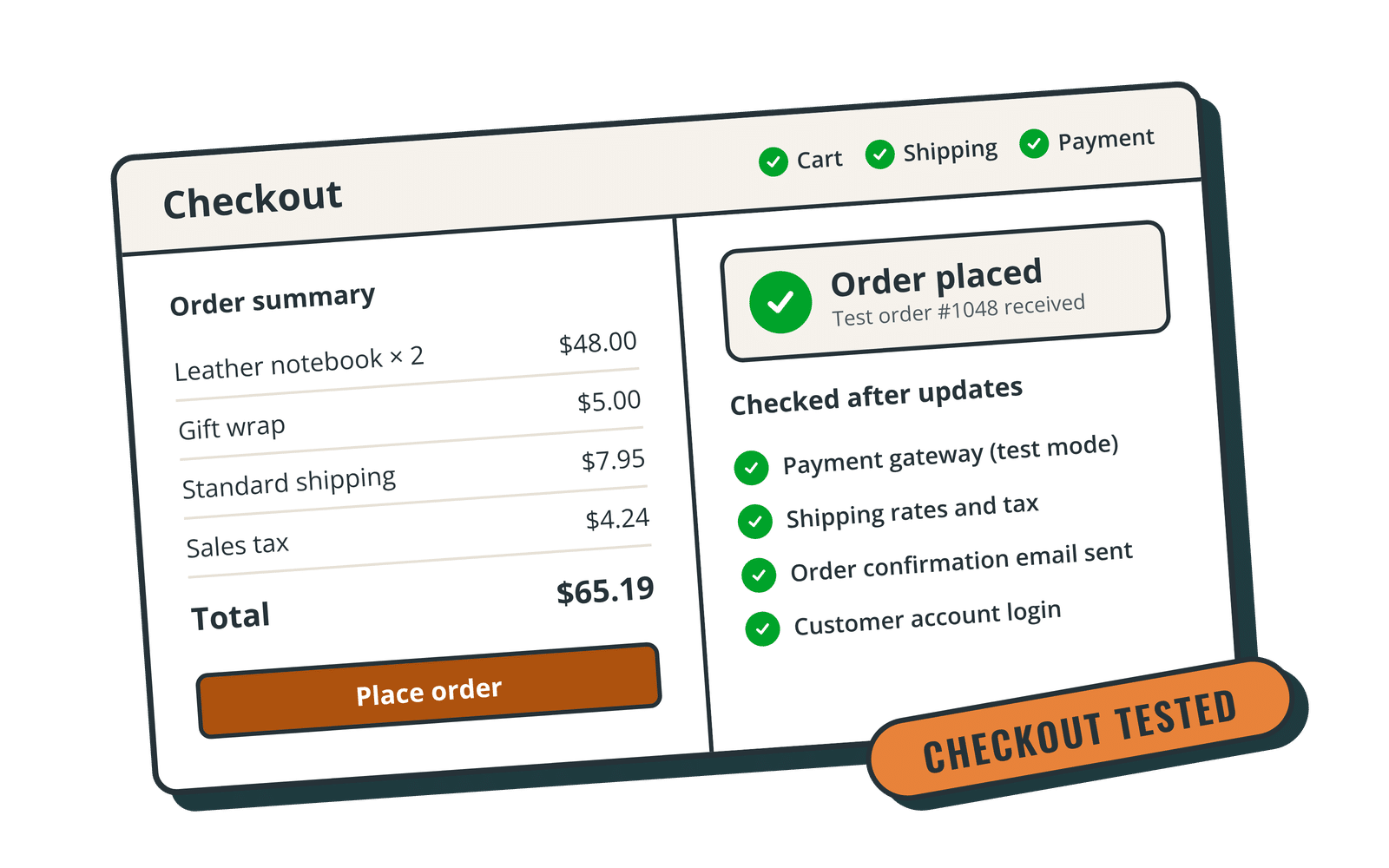
Online stores and member areas have more interactive steps (cart, checkout, account pages, logins), so they need more hands-on testing. Test the full purchase or sign-up path with a keyboard after every significant update. Our article on WooCommerce maintenance covers what to test each month.
How a WordPress care plan helps keep your site accessible
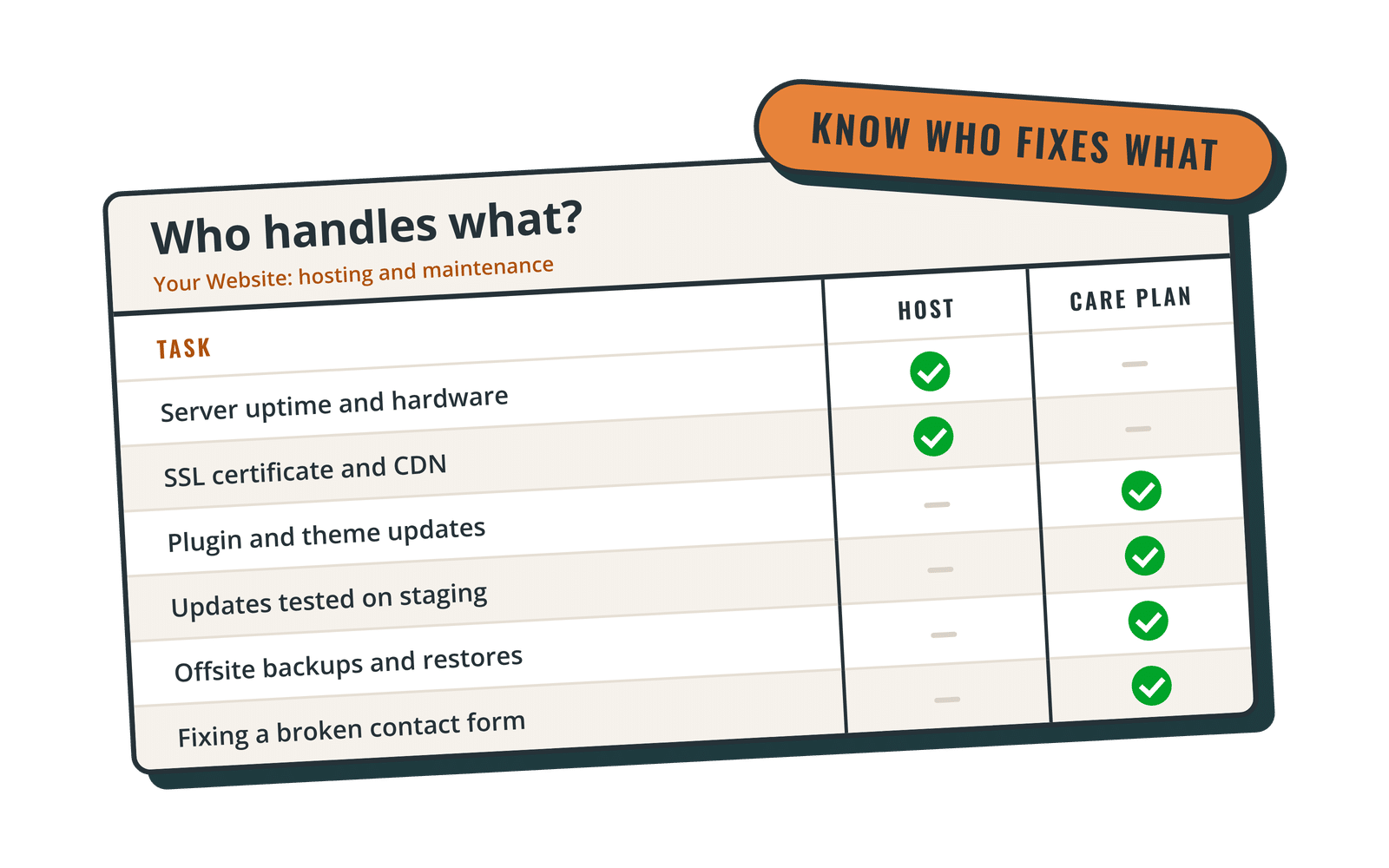
Most accessibility fixes are small edits: adjusting a color, adding alt text, labeling a form field, uploading captions. That’s the kind of work our care plans are built for.
- Essentials ($125/mo) includes weekly updates and five small edits a month, so you can work through an accessibility list a few items at a time.
- Premier ($250/mo) adds unlimited small edits, weekly updates tested on a staging copy first, and WP Engine hosting. See our unlimited website edits service.
- Performance ($325/mo) includes everything in Premier, plus checkout and form testing after updates for stores and membership sites, and a discounted accessiBe license if you’d like a visitor toolbar. We’ll set it up for you and be straight about what it does and doesn’t cover.
Every plan includes SolidWP security, daily offsite backups and a backup before every update, plus business-hours support (weekdays 9am to 5pm Mountain Time) with a same or next business day response. Plans are month to month with no setup fee, and you can cancel anytime. We’re based in Nampa, Idaho, and support WordPress sites across the US. We don’t promise that any plugin, tool or plan makes a site legally “compliant.” We do help you keep making real progress.
The bottom line
The best WordPress accessibility plugin setup is usually simple: a checker to find problems, a fix-up plugin only where your theme needs one, and an optional visitor toolbar on top. The bigger wins come from accessible building blocks and steady content habits.
If you’d like a team to work through the fixes with you and keep your site updated, backed up and secure, compare our WordPress care plans and pricing.