If you've searched for what makes an ADA compliant website, you've probably found two kinds of answers: scary lawsuit headlines, and ads promising one line of code will fix everything. Neither helps much when you just want your WordPress site to work for everyone who visits it. This guide explains, in plain English, what accessibility standards actually say, what WCAG 2.1 Level AA means, the problems most sites have, and where accessibility widgets fit in.
A quick note: we're a WordPress maintenance team, not lawyers. Nothing here is legal advice. If you have a legal question about your obligations, talk to an attorney.
What does "ADA compliant website" mean?
The Americans with Disabilities Act (ADA) is a civil rights law. It doesn't mention websites by name, and for private businesses there is no official checklist that makes a site "ADA compliant." What the law does is prohibit discrimination against people with disabilities. The Department of Justice's Guidance on Web Accessibility and the ADA (March 2022) explains that Title III covers businesses open to the public and requires them to provide "full and equal enjoyment" of their goods and services to people with disabilities, which the DOJ says includes their websites.
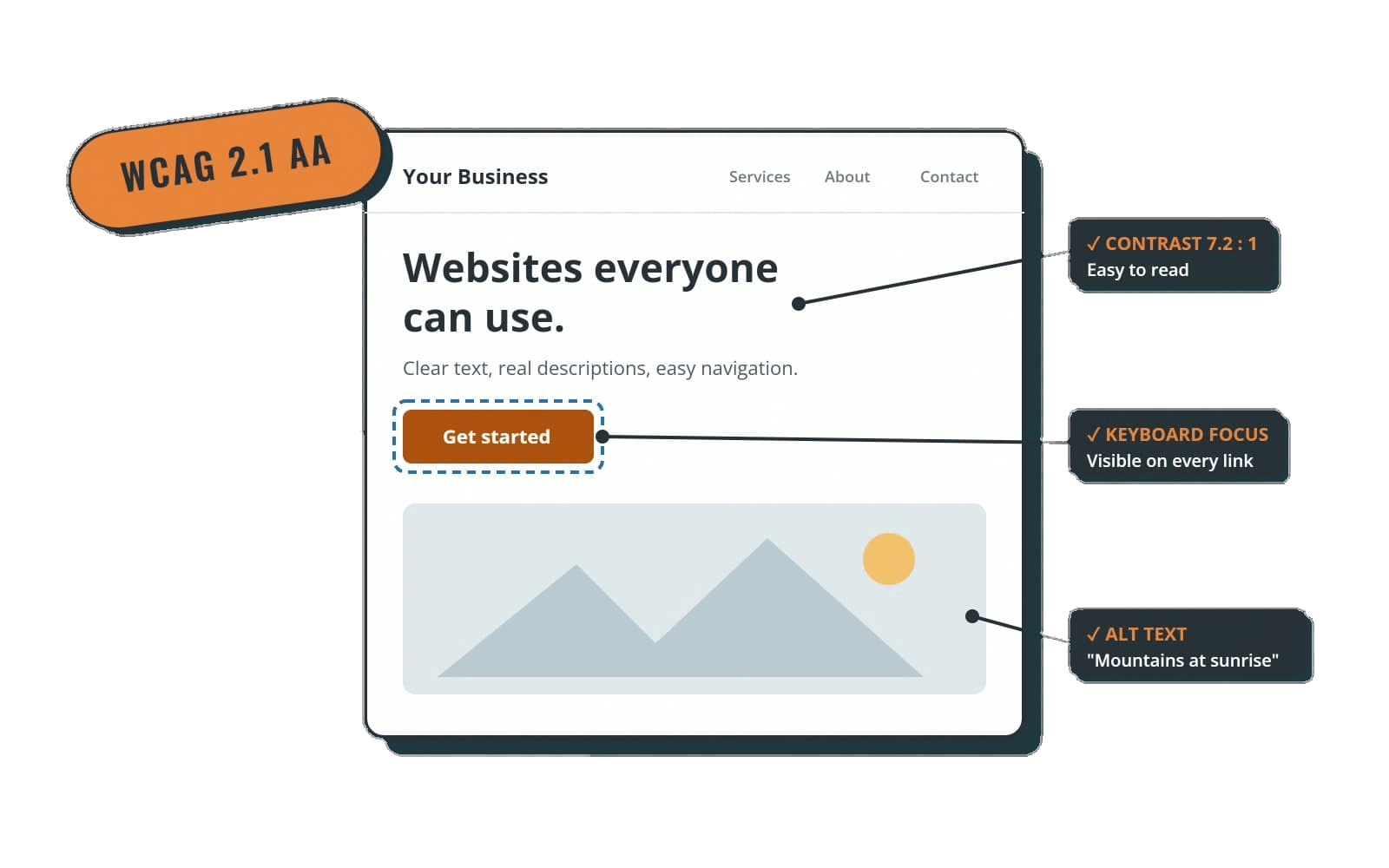
That same guidance says businesses "have flexibility in how they comply," and points to existing technical standards as helpful guidance, naming the Web Content Accessibility Guidelines (WCAG). So when people say "ADA compliant website," what they usually mean in practice is a website that meets WCAG, most often WCAG 2.1 or 2.2 at Level AA.
Where a specific standard does apply
For state and local governments (Title II), the DOJ did set a specific standard. Its 2024 web accessibility rule requires their web content and mobile apps to meet WCAG 2.1 Level AA. After an interim final rule published in April 2026, the compliance dates are April 26, 2027 for governments serving 50,000 or more people and April 26, 2028 for smaller ones and special districts. If you build or maintain sites for a city, county, school district or other public entity, that rule is the one to read.
WCAG 2.1 Level AA in plain English
WCAG is published by the World Wide Web Consortium (W3C). According to the W3C's WCAG overview, version 2.1 was published in June 2018 and version 2.2 in October 2023. The versions build on each other, so content that meets WCAG 2.2 also meets 2.1 and 2.0, and the W3C encourages using the latest version.
Each guideline has success criteria at three levels: A (the basics), AA (the level most policies and laws point to) and AAA (the strictest, not expected for whole sites). The criteria are grouped under four principles. Here's what they mean for an ordinary business website:
- Perceivable: people can take in the content whether they see it, hear it or use a screen reader. Images have text alternatives, videos have captions, and text has enough contrast against its background.
- Operable: everything works with a keyboard, not just a mouse. Menus, sliders, pop-ups and forms can be reached and used with the Tab key, and nothing flashes in ways that can trigger seizures.
- Understandable: pages behave predictably, form fields have clear labels, and error messages say what went wrong and how to fix it.
- Robust: the code is clean enough that browsers and assistive technology, like screen readers, can interpret it reliably.
The most common accessibility problems on real websites
If your site has accessibility issues, you're in large company. WebAIM tests the home pages of the top one million websites every year. Its WebAIM Million 2026 report found detectable WCAG 2 failures on 95.9% of home pages, with an average of 56.1 errors per page. The six most common problems were:
- Low-contrast text (83.9% of home pages)
- Missing alternative text for images (53.1%)
- Missing form input labels (51%)
- Empty links (46.3%)
- Empty buttons (30.6%)
- Missing document language (13.5%)
WebAIM notes that 96% of all the errors it detected fell into those six categories. That's good news: most of the work is fixable, and much of it is ordinary site upkeep rather than a rebuild. The DOJ's guidance lists similar barriers, including poor color contrast, using color alone to convey information, missing alt text, videos without captions, unlabeled forms and mouse-only navigation.
Where WordPress sites usually fall short
WordPress core itself is built with accessibility in mind. Problems usually come from what's layered on top: themes, page builders, plugins and the content you add over the years. The usual suspects:
- Theme colors. Light gray text, white text over photos and brand-colored buttons often fail contrast checks.
- Images uploaded without alt text. The Media Library has an "Alternative Text" field; it's easy to skip when you're in a hurry.
- Icon-only links and buttons. Social icons, search magnifying glasses and hamburger menus with no text label read as "link" or "button" to a screen reader, which is where those "empty link" and "empty button" errors come from.
- Form plugins. Placeholder text used instead of real labels, and error messages that only turn a field red.
- Sliders, pop-ups and mega menus that can't be reached or closed with a keyboard.
- Headings chosen for looks. Skipping from H2 to H5 because the font size looked right makes the page harder to navigate with a screen reader.
- Videos and PDFs. Uploaded videos without captions and scanned PDFs without real text.
What accessibility overlays like accessiBe can and can't do
Accessibility widgets, often called overlays, add a toolbar to your site so visitors can adjust things like text size, contrast, spacing and animations. Some also use automated scripts to try to patch issues in the page. accessiBe is one of the best known. Used for what it is, a widget like this can make a site more comfortable for some visitors.
What an overlay can't do is guarantee that your site meets WCAG or the ADA. Automated tools can't judge whether alt text actually describes an image, whether a form's error messages make sense, or whether a custom checkout works with a keyboard and screen reader. In 2025 the Federal Trade Commission finalized an order requiring accessiBe to pay $1 million over allegations that it misrepresented its AI-powered tool as able to make any website WCAG compliant. The order bars the company from making that claim without evidence.
Our take: think of an overlay as an optional extra on top of an accessible site, never a replacement for fixing the site itself.
A practical accessibility checklist for your WordPress site
You don't need to be a developer to make real progress. Start here:
- Run a free automated check. Tools such as WAVE from WebAIM or the Lighthouse accessibility audit built into Chrome flag contrast, alt text, label and link problems in minutes. Remember they catch only part of the picture.
- Try your site with only a keyboard. Press Tab through your homepage, menu, contact form and checkout. Can you see where you are on the page at all times? Can you reach and use everything?
- Fix contrast at the theme level. Adjust colors once in your theme or page builder settings rather than page by page.
- Add alt text to meaningful images and leave it empty for purely decorative ones.
- Label every form field and make sure errors are described in text.
- Give icon links and buttons accessible names, such as "Search" or "Visit our Facebook page."
- Caption your videos and replace scanned PDFs with real text or web pages.
- Re-check after updates and redesigns. New plugins, theme updates and new content can introduce new problems. Accessibility is upkeep, not a one-time project.
- Publish an accessibility statement with a way for visitors to report problems, then respond when they do.
- Get a manual review for complex sites. Online stores, booking systems and membership sites benefit from testing by someone experienced with screen readers.
How a WordPress care plan helps keep your site accessible
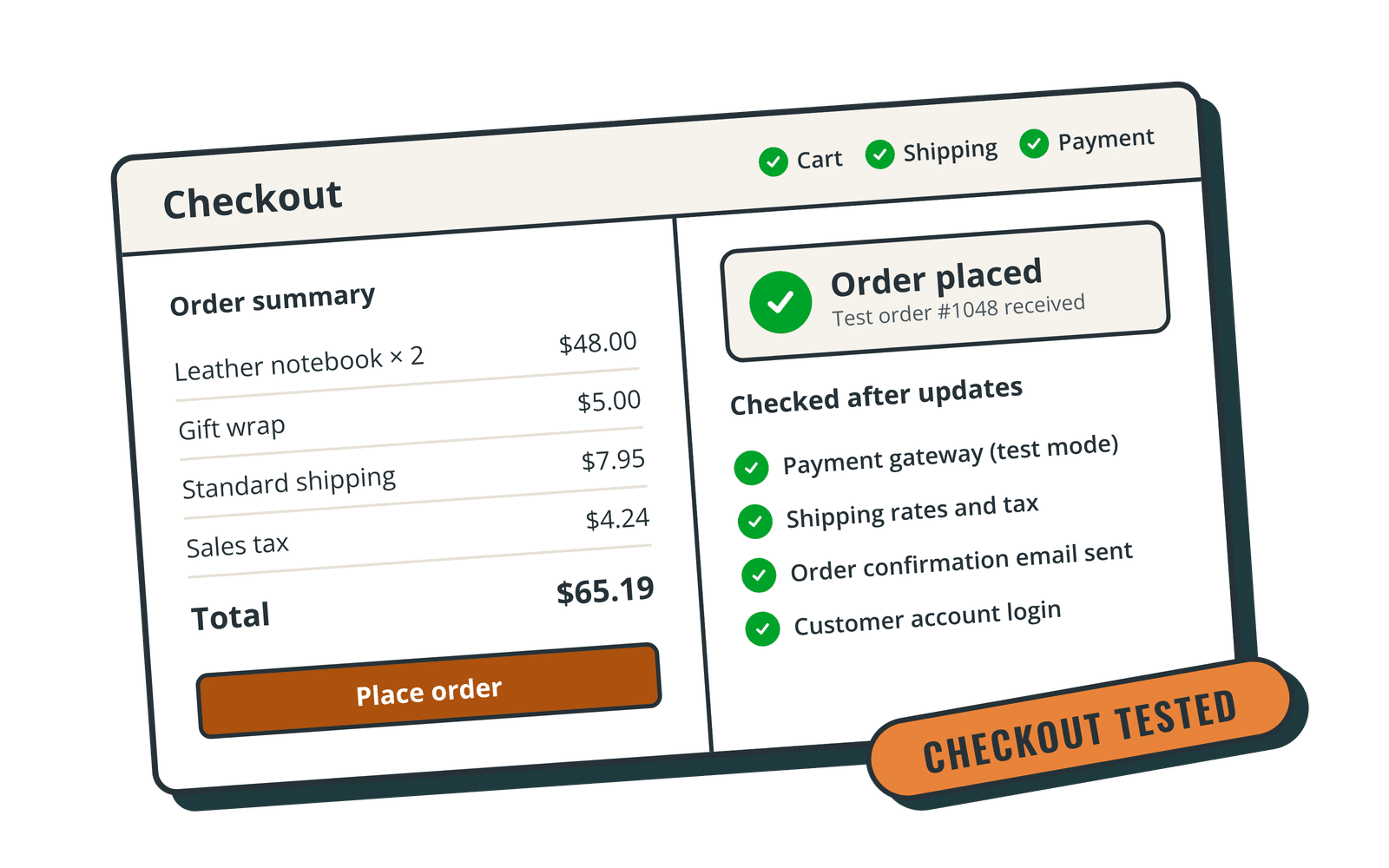
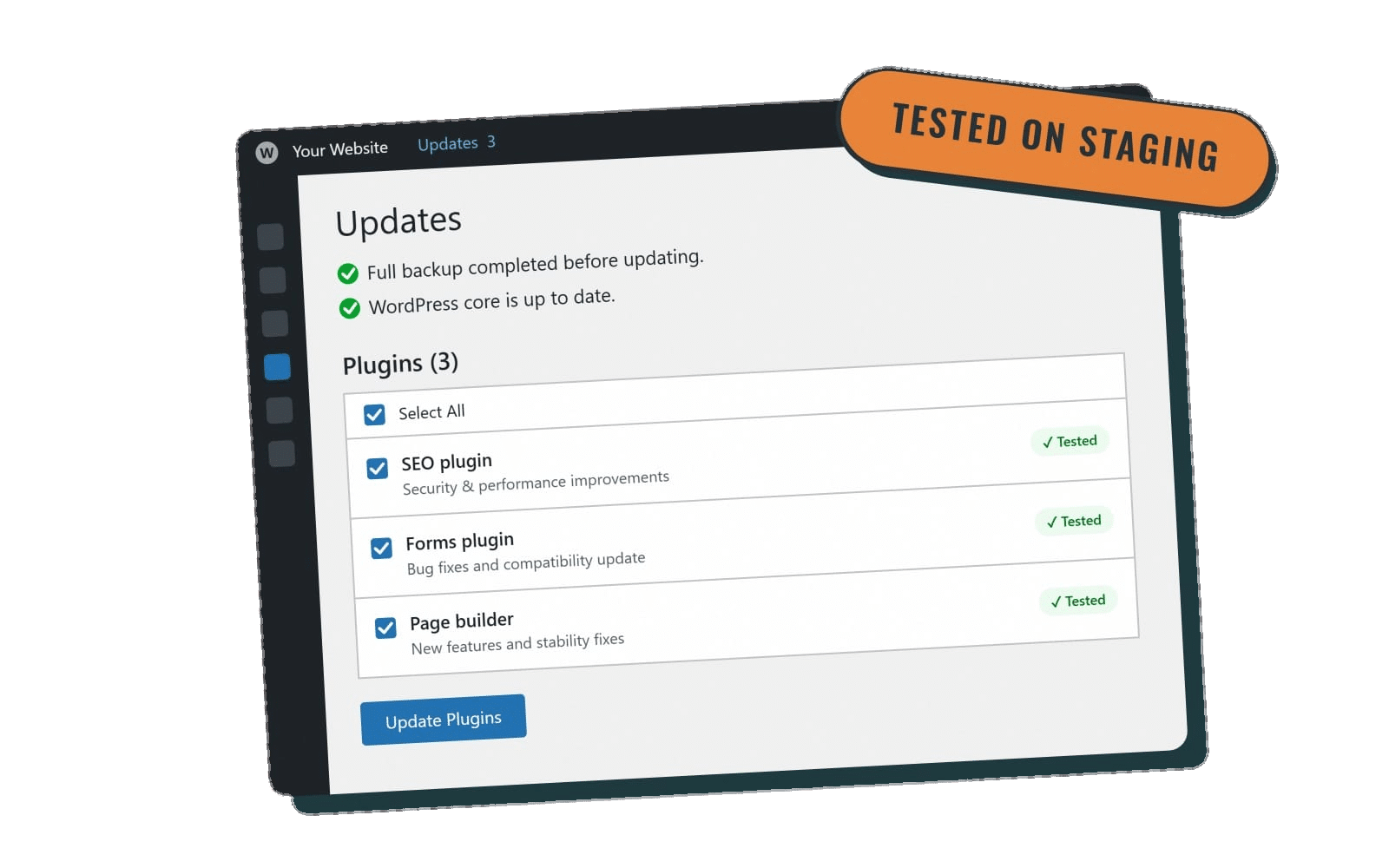
Most of the fixes above are small edits: changing a color, adding alt text, relabeling a form field, adding a caption. That's exactly the kind of work our plans cover. Essentials includes 5 small edits a month, and Premier and Performance include unlimited small edits, so you can work through an accessibility list a few items at a time without a separate project. Weekly WordPress updates on those plans, with a backup before every update, keep themes and plugins current, and Premier and Performance test updates on staging first.
If you'd also like a visitor-facing accessibility widget, our Performance plan includes accessiBe at a discounted license rate, alongside checkout and form testing after updates for stores and membership sites. We'll set it up for you, and we'll be straight with you about what it does and doesn't cover. We don't promise that any tool or plan makes a site legally "compliant."
Frequently asked questions
Is my small business website required to be ADA compliant?
The DOJ's position is that the ADA's Title III applies to businesses open to the public, including their websites, but there is no specific technical standard written into the regulations for private businesses. Whether and how it applies to your situation is a legal question for an attorney. Making your site usable for people with disabilities is worthwhile either way.
Should I aim for WCAG 2.1 or WCAG 2.2?
WCAG 2.1 Level AA is the standard named in the DOJ's rule for state and local governments. The W3C recommends the newest version, 2.2, and anything that meets 2.2 also meets 2.1, so 2.2 AA is a sensible target for new work.
Will installing an accessibility plugin make my site compliant?
No plugin or widget can guarantee that. Some plugins help with specific fixes, like adding skip links or focus outlines, and widgets give visitors display options. The underlying content, theme and forms still need to be accessible.
How long does it take to fix accessibility issues?
It depends on the site. Contrast, alt text and form labels are often quick fixes. Custom sliders, menus or checkout flows can take longer. Running an automated check and a keyboard test will give you a realistic list to work from.
Make accessibility part of your site's regular upkeep
An accessible website isn't a badge you install once. It's the result of good content habits and steady maintenance. If you'd like a team to help you work through the fixes and keep your WordPress site updated, backed up and secure, compare our WordPress care plans and pricing. Every plan is month to month with no setup fee, and you can reach us weekdays 9am to 5pm Mountain Time at (208) 318-6138.